
Compare Clusters tool compares Kafka object definitions between a source cluster and a destination cluster. It is intended for cluster migration checks, configuration audits, and verifying that selected Kafka objects were recreated consistently in another environment.
The tool compares the selected objects and settings only. It does not modify either cluster.
Compare Clusters uses a three-page wizard.
| Page | Purpose |
|---|---|
| Select Clusters | Select the source and destination clusters, choose the object types, and select or filter the objects to compare. |
| Settings | Choose the Kafka definitions and attributes to compare for each selected object type. |
| Results | Review matching, missing, extra, and mismatched objects in source and destination trees, then save a project or generate a report. |
Open the tool from Tools > Compare Clusters.... The dialog remembers its size and the most recently selected source and destination connections.
Use Load Project or the recent-projects button on the Select Clusters page to load a saved comparison project. When a project is loaded, Offset Explorer selects the saved source and destination connections and connects to them if needed.
The top of the page contains the Source and Destination cluster selectors. If a selected connection is not connected, use the Connect button next to that selector. Object lists are loaded from the source cluster only, and each object tab is loaded lazily when it is first displayed.
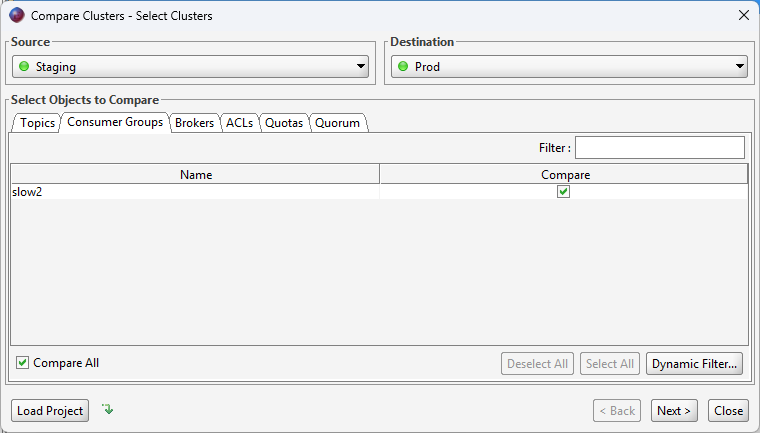
The object tabs are Topics, Consumers, Brokers, ACLs, Quotas, and Quorum. Each tab has its own object selection controls and saved settings.
| Control | Description |
|---|---|
| Compare All | Compares all source objects for the current tab. When Compare All is selected, individual Compare checkboxes cannot be edited and Select All / Deselect All are disabled. |
| Dynamic Filter | Available when Compare All is selected. Enter a regular expression to include only objects whose names match at comparison time. Dynamic filters are saved per object type and are useful when a project should apply to objects that may be created later. |
| Filter | Filters the visible rows in the grid for the current tab. This is a display filter and does not change which objects are compared. |
| Select All / Deselect All | Selects or clears the Compare column for the current tab when Compare All is not selected. |
| Compare column | Controls whether an individual object is included when Compare All is not selected. |
| Tab | Rows and Columns |
|---|---|
| Topics | Displays source Topic names and the Compare column. |
| Consumers | Displays source Consumer group names and the Compare column. |
| Brokers | Displays Broker id values sorted numerically and the Compare column. |
| ACLs | Displays Resource Type, Resource Name, Principal, Host, Operation, Permission Type, Pattern Type, and Compare. These fields identify an ACL entry. |
| Quotas | Displays User, Client ID, IP, and Compare. Blank quota components are left blank in the grid and omitted from formatted quota names. |
| Quorum | Displays the metadata quorum object when metadata quorum information is available for the cluster. |
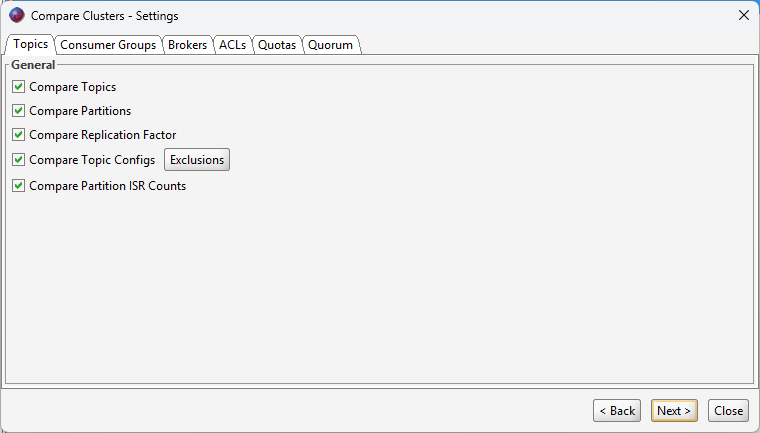
The Settings page controls which objects are compared and characteristics of each object are compared.
| Object Type | Settings |
|---|---|
| Topics | Compare Topics enables Topic comparison. Optional checks compare Partitions, Replication Factor, Topic Configs, and Partition ISR Counts. Topic Configs has an Exclusions button for entering comma-separated config names to ignore. |
| Consumers | Compare Consumer Groups enables Consumer group comparison. Optional checks compare Group State, Member Count, and Consumed Topic Partitions. Offsets, coordinator, and member assignments are not compared. |
| Brokers | Compare Brokers enables Broker comparison. Optional checks compare Broker Ports, Rack, Controller status, and Broker Configs. Broker Configs has an Exclusions button for comma-separated config names to ignore. |
| ACLs | Compare ACLs compares ACL entries by Resource Type, Resource Name, Pattern Type, Principal, Host, Operation, and Permission Type. Because these fields define the ACL key, ACL results are matching, missing, or extra rather than mismatched. |
| Quotas | Compare Quotas compares quota entries by User, Client ID, and IP and compares the non-blank quota values such as Producer Byte Rate, Consumer Byte Rate, Request Percentage, Controller Mutation Rate, and Connection Creation Rate. |
| Quorum | Compare Metadata Quorum compares metadata quorum values that should match when the cluster configuration matches, including voter and observer counts. Compare Metadata Quorum Replicas additionally compares the configured quorum replica voter entries. |
The Results page shows separate source and destination trees. Each tree contains folders for the compared object types only.
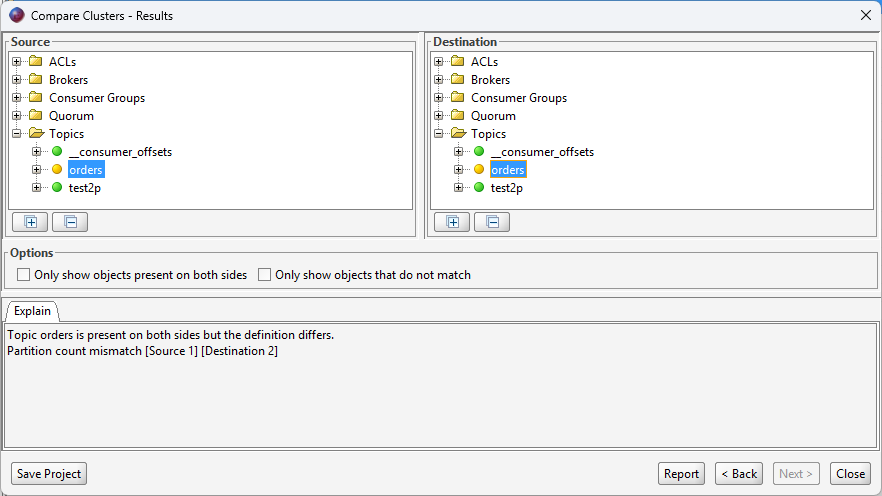
Result items use status icons for Match, Missing, Extra, and Mismatch. Folder nodes use folder icons.
| Object Type | Layout |
|---|---|
| Topics | Topics contains one item per Topic. A Topic can contain Partitions and Configs folders. Partition items do not have child items. Config items are listed alphabetically by config name. Topic-level differences such as partition count and replication factor are shown in the Topic item's details rather than as separate child nodes. |
| Consumers | Consumers contains one item per Consumer group. Consumed Topic information is grouped under Consumed Topics, then by Topic, then by consumed Partition. |
| Brokers | Brokers contains one item per Broker id. Broker-level differences such as port, rack, and controller status are shown in the Broker item's details. Broker config differences are shown under the Configs folder. |
| ACLs | ACLs are grouped by resource type, such as Topics, Groups, Cluster, or User. ACL items do not have child items. |
| Quotas |
Quotas are displayed as single items formatted from the available components, for example
[User alice][Client orders][IP 10.0.0.5]. Quota items do not have child items.
|
| Quorum | Quorum shows the metadata quorum item. Replica details are grouped under Replicas when Metadata Quorum Replicas comparison is enabled. |
Select Only show objects that are present on both sides to hide missing and extra items. Select Only show objects that do not match to hide matching items.
Selecting a result item shows an explanation in the details area. Missing and extra items identify which side contains the object. Mismatched items state that the object is present on both sides but the definition differs, followed by each compared definition that has different source and destination values.
Topic orders is present on both sides but the definition differs.
Replication factor mismatch [Source 2] [Destination 3]
Config details show the config name and value only. Config source markers such as default-config status are not compared or displayed. ACL details list the ACL fields in a compact attribute format. Quota details show only non-blank quota values.
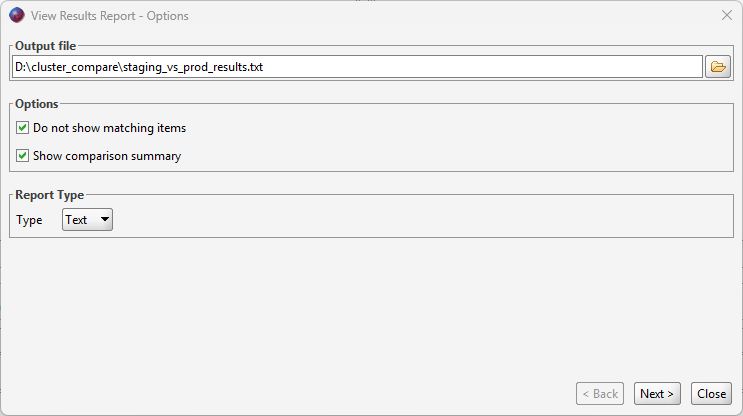
Use the Report button on the Results page to open the View Results Report wizard.
| Area | Description |
|---|---|
| Output file | Enter the report output file or use the open button to choose a location. If the file name has no extension, the selected report type extension is added. Existing extensions are preserved. |
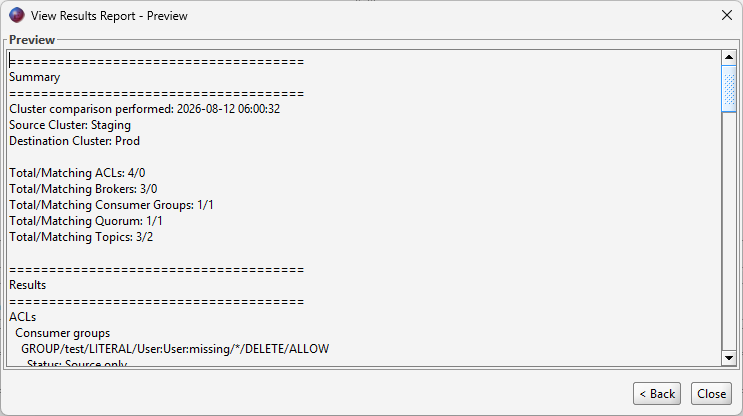
| Options | Do not show matching items omits matching entries from the generated report. Show comparison summary includes the performed time, source cluster, destination cluster, and total/matching counts for each compared object type. |
| Report Type | Select Text, JSON, or XML output. |
The Preview page shows the generated report text exactly as it was written to the selected output file. Use Back to change report options and regenerate the preview.
Load Project and recent projects are available on the Select Clusters page. Save Project is available on the Results page after a comparison has run.
A project JSON file stores the source and destination connection references, per-object Compare All settings, dynamic filters, selected objects, comparison settings, config exclusions, and report options. When Compare All is selected for an object type, individual object names are not saved.
If the original connection id is no longer available, Offset Explorer tries to find a saved connection with the same name.
A saved Compare Clusters project can be run from the Offset Explorer command-line tool. The command uses the saved project settings, connects to both clusters, performs the comparison, and generates the configured report.
commandline -compareClusters "C:\Projects\cluster-compare-orders.json"
See the Command-Line Tool documentation for command-line usage details.