
The Find Messages tool searches Kafka topic data across one or more partitions and returns only the messages that match the selected conditions. It helps troubleshoot production issues, verify that expected events were produced, locate messages without manually paging through topic data, and narrow large topics down to the records that matter. It can search message headers, keys, and values using string, binary, Avro, Protobuf, JSON Schema, regular expression, and JsonPath-based matching.
Open the tool from the Tools menu by selecting "Find Messages...". When viewing a topic or partition in the data panel, you can also use the Find button in the toolbar.
Opening the tool from a topic or partition preselects the current topic; when opened from a single partition, only that partition is selected by default.
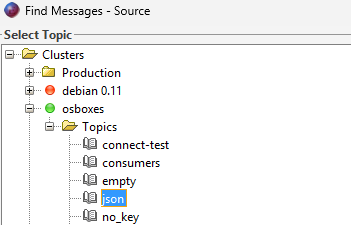
The Source page is the first page of the dialog. Select the topic whose messages you want to search. Click "Next" to continue to the Settings page.
If the dialog was opened from a topic or partition data panel, the topic is selected automatically and the dialog opens directly on the Settings page. The previous search settings for the topic are restored (if available).
The Settings page defines what to search, where to start reading, how many messages to inspect, and which partitions are included. Headers, Key, and Value settings are combined with AND logic. For example, if you search for a header and a value, a message must match both conditions to be returned. At least one of Headers, Key, or Value must be enabled.
Offset Explorer saves the Headers, Key, Value, Offsets, and Partitions settings per topic. When no topic-specific settings exist, defaults are loaded from the global user settings. For Key and Value, the default Type is based on the topic's configured decoder.
Each Headers, Key, and Value panel has a Type dropdown. If "Do no search" is selected, that part of the message is ignored and its other controls are hidden.
Headers support only String, Binary, and Do no search. Key and Value support String, Binary, Avro, Protobuf, JSON Schema, and Do no search.
The Headers panel searches message headers. The "Header Names" field limits the search to specific header names.
Enter one or more names separated by commas, such as trace-id, source, tenant.
Leave the field blank to search through all headers.
When Type is String, the header value is searched as text. When Type is Binary, the header value is searched as bytes using a hexadecimal search term. Header names are used only to choose which header values are searched; the Search Term is matched against the header value.
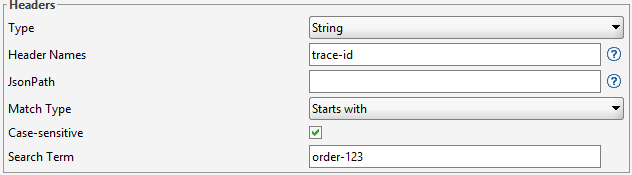
Example: to find messages with a header named trace-id whose value starts with order-123,
set Type to String, Header Names to trace-id, Match Type to Starts with, and Search Term to order-123.
The Key and Value panels search the message key and message value. They use the same matching controls as the Headers panel, with additional Avro, Protobuf, and JSON Schema types when the data should be decoded before matching.
For Avro, Protobuf, and JSON Schema searches, configure the Schema Registry and set the topic's key/value Content Type to Avro, Protobuf, or JSON Schema first. The decoded text is then searched, so you can use string matching, RegEx, and JsonPath against the decoded value.
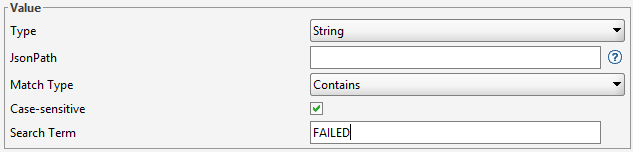
Example: to find messages where the value contains FAILED, set Value Type to String, Match Type to Contains,
and Search Term to FAILED. Set Key and Headers to "Do no search" unless they should also be required.
Match Type controls how the Search Term is compared to the selected message data.
Case-sensitive applies to text-based searches. When it is unchecked, normal string matching ignores case. RegEx matching uses the same case-sensitive setting when compiling the pattern.
Binary searches use hexadecimal input. Do not include 0x prefixes, spaces, commas, or quotes.
Use two hex characters per byte.
48656c6c6f searches for the bytes for Hello.00ff10 searches for bytes 0x00, 0xff, and 0x10.0a searches for a line feed byte.20 searches for a space byte.RegEx is available when the Type is String, Avro, Protobuf, or JSON Schema for Key and Value, and when the Type is String for Headers. The pattern is matched against the selected text or decoded text.
order-[0-9]+ matches order-123 and order-98765.^ERROR matches values that start with ERROR.completed$ matches values that end with completed.customer|account matches either customer or account.\d{4}-\d{2}-\d{2} matches a date-like value such as 2026-06-05.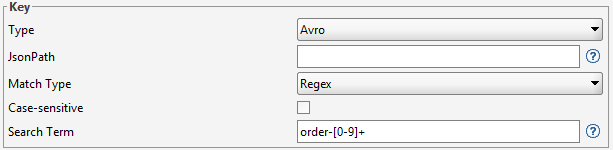
JsonPath can be used to search a specific part of the data when the data is in JSON format. Leave the JsonPath field blank to search the entire value. JsonPath is available for text-based searches. For Avro, Protobuf, and JSON Schema Key or Value searches, the decoded data is searched.
$.id selects a top-level field named id.$.customer.email selects a nested field.$.items[*].sku selects the sku field from each item in an array.$..traceId selects any traceId field in the document.$ selects the whole JSON document.Example JSON value:
{"customer":{"email":"alice@example.com"},"items":[{"sku":"sku-1"},{"sku":"sku-2"}]}
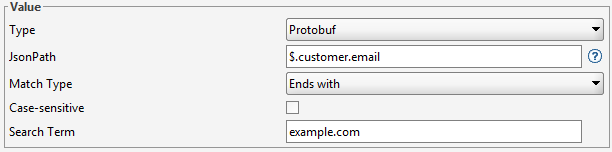
To find the customer email, set JsonPath to $.customer.email, Match Type to Exact,
and Search Term to alice@example.com. To find any item with SKU sku-2,
set JsonPath to $.items[*].sku, Match Type to Exact, and Search Term to sku-2.
The Offsets panel controls how messages are read from each selected partition.
YYYY-MM-DD HH24:MI:SS format or use the calendar button.1.When "Start from specific timestamp" is selected, Offset Explorer asks Kafka for the starting offset that corresponds to that timestamp. The default timestamp is five minutes before the current time.
The Partitions table lists the partitions for the selected topic. Check the partitions that should be searched. Searching fewer partitions can reduce the amount of data that must be read.
After the search runs, the Results page shows a summary and the matching messages. The summary includes when the search started, the time taken, the number of messages searched, and the number of messages found.

The Matches table shows the messages that satisfied the selected conditions.

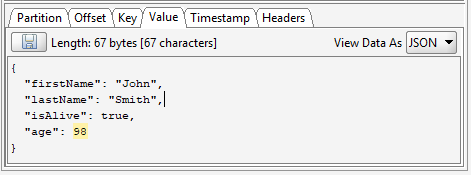
Selecting a row opens the message detail panel. Matching portions of the key, value, and matching headers are highlighted where possible. Avro, Protobuf, and JSON Schema key or value data is displayed using the configured decoder.
While the search is running, the progress dialog shows "Searched" and "Found" counts. After more than 10K messages have been searched, the searched count is abbreviated with K. If the search is canceled after matches have already been found, Offset Explorer opens the Results page with the matches found so far.