
The Generate Data tool creates Kafka records directly in Offset Explorer. Use it to seed a test topic, create repeatable sample data, exercise consumers, or verify how a topic behaves with specific keys, values, headers, timestamps, and partition choices.
Open the tool from the Tools menu by selecting "Generate Data...". When viewing a topic or partition in the data panel, you can also use the Generate Data toolbar button.
Opening the tool from a topic preselects that topic; opening it from a partition also selects that partition by default.
Generate Data uses a three-page wizard.
Last-used generation settings are saved in user settings. You can also save a complete project file as JSON and load it later.
The Destination page selects the topic where data will be generated. Choose the server connection and Topic, then click Next. The selected Topic controls the available partitions and, for Avro, Protobuf, or JSON Schema generation, the Schema Registry subjects used by the template-from-schema action.
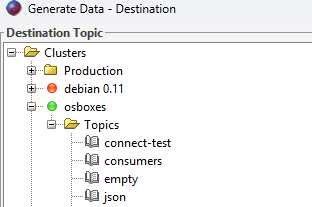
The Destination page also contains project loading controls on the left side of the button row.
A saved project includes the selected server connection, topic name, selected partitions, and all generator settings. If the original connection id is no longer available, Offset Explorer tries to find a matching connection by name.
The Settings page defines the generated Kafka records. It contains sections for Headers, Key, Value, Options, and Partitions. At least one of Headers, Key, or Value must generate data.
The button row provides these actions:
The Headers section creates Kafka headers. Enter one header per line using name=value format.
The value can contain generator expressions. Header values are produced as UTF-8 text bytes.
Header template example:
source=offset-explorer-generator
run-id=${runId=uuid}
run-id-copy=${runId}
sequence=${seq}
created-at=${timestamp.iso}
In this example, ${runId=uuid} creates a UUID and stores it in a variable named runId.
${runId} reuses the same value later in the same record.

Blank lines are ignored. Non-blank lines must contain an equals sign with a non-empty header name before it. The first equals sign separates the header name from the header value. Additional equals signs in the value are kept as part of the value. Header names cannot contain equals signs.
The Key and Value sections work the same way. Each section has a Type dropdown and, when the selected type generates data, a template text area below it.
For Avro, Protobuf, and JSON Schema, the subject name is based on the selected Topic and whether the Key or Value is being generated:
topic-name-key for keys and topic-name-value for values. A Schema Registry must be configured
for the server connection.
For Avro, Protobuf, and JSON Schema, the Subject icon button next to the Type dropdown generates a JSON template from the latest schema. The generated template is a starting point; edit it to use the expressions and literal values you need.
The question mark button opens type-specific quick help. The plus button opens a popup of expressions that are useful for the selected type. Selecting an expression inserts it at the current cursor location, or at the end of the template when there is no cursor location.
String templates are useful for plain text, JSON text, IDs, names, and any payload that should be written as UTF-8 bytes.
Simple string example:
customer-${random.int(1000,9999)}
JSON string example:
{
  "id": "${seq}",
  "eventId": "${uuid}",
  "customerId": "cust-${customerId=random.int(1000,9999)}",
  "repeatCustomerId": "cust-${customerId}",
  "createdAt": "${timestamp.iso}",
  "createdAtLocal": "${timestamp.format(yyyy-MM-dd HH:mm:ss)}",
  "amount": "${random.double(1.00,500.00)}",
  "status": "${enum(PENDING,APPROVED,DECLINED)}"
}
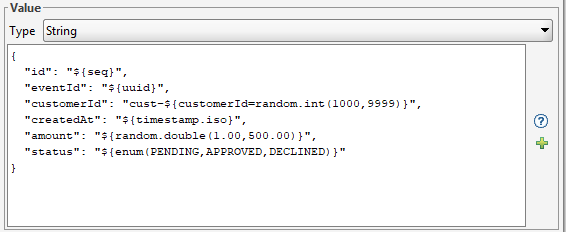
JSON templates are not restricted to Avro, Protobuf, or JSON Schema. If the Type is String, the JSON is produced exactly as text.
Binary templates must evaluate to hexadecimal characters. Whitespace is ignored before the hex is converted to bytes. Odd-length hex strings are accepted; Offset Explorer treats them as if they had a leading zero.
Binary examples:
DE AD BE EF produces four bytes: 0xDE, 0xAD, 0xBE, 0xEF.DE AD ${seq.hex(4)} produces bytes that include the sequence as padded hex.AA ${random.hexString(8)} produces one literal byte followed by four random bytes.${seq.hex(8)} produces a four-byte sequence number, padded to eight hex characters.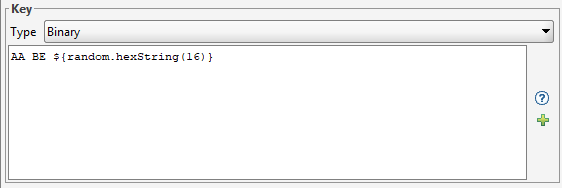
Do not use expressions that can produce non-hex characters in a binary template. For example, ${uuid}
includes hyphens and is not valid hex. ${random.hexString(16)} is safe for binary templates because it
produces only hex characters.
Avro, Protobuf, and JSON Schema templates are written as JSON. The generated JSON must match the selected Schema Registry schema. Offset Explorer evaluates expressions first, parses the resulting JSON, converts or validates it using the selected schema type, and sends the encoded bytes using the Confluent Schema Registry wire format.
Avro example:
{
  "orderId": "order-${seq}",
  "customer": {
    "id": "cust-${random.int(1000,9999)}",
    "tier": "${enum(BRONZE,SILVER,GOLD)}"
  },
  "createdAt": "${timestamp.iso}",
  "amount": "${random.double(10.00,250.00)}"
}
Protobuf JSON should use the JSON field names expected by Protobuf. For example, a Protobuf field named
order_id is normally represented as orderId in JSON.
{
  "orderId": "order-${seq}",
  "customer": {
    "id": "cust-${seq}",
    "tier": "${enum(BRONZE,SILVER,GOLD)}"
  }
}
JSON Schema templates use regular JSON field names from the schema. The generated JSON is validated against the latest JSON Schema before it is sent.
{
  "event_id": "event-${seq}",
  "status": "${enum(SUCCESS,FAILURE,PENDING)}",
  "event_time": "2026-01-01T00:00:00+00:00",
  "is_active": ${random.boolean}
}
Expressions are written as ${expression}. They can be used in header, key, and value templates.
A variable can be assigned with ${name=expression} and reused later in the same generated record with
${name}. Variables are useful when the key, value, and headers must share the same generated value.
Inside an expression, the first equals sign is treated as a variable assignment separator. Equals signs are not escaped inside expressions. Literal equals signs are safe outside expressions, including in normal string and JSON template text.
Example of reused values:
Key:
customer-${customerId=random.int(1000,9999)}

Value:
{"customerId":"customer-${customerId}","eventId":"${eventId=uuid}"}

Headers:
customer-id=customer-${customerId}
event-id=${eventId}
| Expression | Description | Example Output |
|---|---|---|
${seq} |
Current sequence number, starting at 1. | 42 |
${seq.hex(width)} |
Current sequence number as uppercase hex, padded to the requested width. | 0000002A |
${uuid} |
Random UUID. | 9b2f4f7e-55df-4e31-9e12-3f3c0d58e2b8 |
${timestamp.iso} |
Current timestamp as an ISO-8601 instant. | 2026-06-08T14:25:30.123Z |
${timestamp.iso(start,incrementMillis)} |
Fixed start timestamp plus an increment for each sequence. | 2026-01-01T00:00:05Z |
${timestamp.millis} |
Current epoch time in milliseconds. | 1780928730123 |
${timestamp.seconds} |
Current epoch time in seconds. | 1780928730 |
${timestamp.format(pattern)} |
Current timestamp formatted with a Java date/time pattern in the local time zone. | 2026-06-08 10:25:30 |
${random.int(min,max)} |
Random integer in the specified range. | 3742 |
${random.long(min,max)} |
Random long in the specified range. | 987654321 |
${random.double(min,max)} |
Random decimal number in the specified range. | 247.36 |
${random.boolean} |
Random boolean value. | true |
${random.string(min,max)} |
Random alphanumeric string with a length in the specified range. | aB39kLm2 |
${random.hexString(length)} |
Random uppercase hex string with exactly the requested number of characters. | 09AF3C7E |
${enum(A,B,C)} |
Randomly chooses one of the listed values. | B |
${name=expression} |
Assigns the generated value to a variable for this record. | cust-1234 |
${name} |
Reuses a previously assigned value in the same record. | cust-1234 |
The Options section controls how many records are generated and how the run behaves.
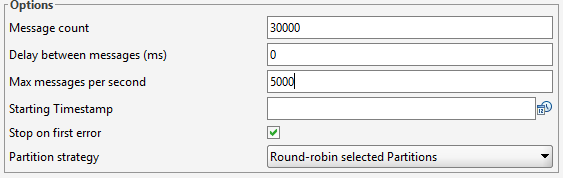
Max Messages Per Second is an overall limit for the run, not a per-partition limit. For example, generating 10000 messages with a limit of 1000 messages per second should take about 10 seconds, even when multiple partitions are selected.
Starting Timestamp uses the same timestamp entry style as Find Messages. You can type the timestamp or use the date picker button. When a starting timestamp is provided, generated records use that timestamp plus the elapsed time of the generation run. When the field is blank, Offset Explorer sends records without an explicit timestamp and Kafka assigns one.
The Partitions table lists the partitions for the selected Topic. Select the partitions that should be used by the generator. The table applies when the partition strategy uses selected partitions.

Round-robin example with selected partitions 0 and 1:
Sequence 1 - Partition 0
Sequence 2 - Partition 1
Sequence 3 - Partition 0
Sequence 4 - Partition 1
Use Kafka default partitioner when you want Kafka to make the partition choice, for example when a generated key should influence partition selection using the standard producer behavior.
Preview generates the first 10 records locally and shows them in a separate dialog. It does not connect to Kafka to send records. Use preview before running a large generation job to verify expressions, headers, keys, values, and partition choices.
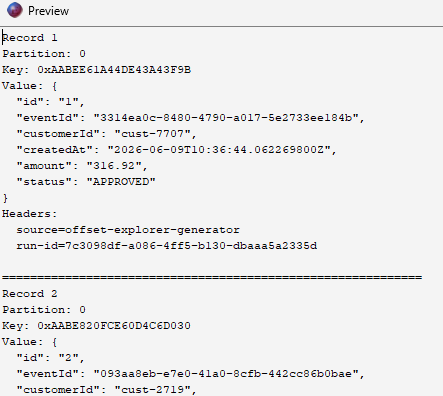
Preview output includes each record number, partition, key, value, and headers. Records are separated by a line of equals signs so they can be reviewed easily.
Use Save Project on the Settings page to save the current generator configuration as formatted JSON. Use Load Project on the Destination page to load it later. Project files are useful for repeatable test data runs and for sharing a generator setup with another user.
The saved project includes the connection id, connection name, topic name, selected partitions, key and value types, key and value templates, header template, options, starting timestamp, and partition strategy.
Offset Explorer remembers the last folder used for loading or saving generator projects and opens the file chooser there next time.
After the generation completes, the Results page shows a summary and a per-partition table.
The Partitions table shows each partition used during the run. For each partition, it displays messages attempted, messages produced, first offset, and last offset. Offsets are shown per partition because Kafka offsets are partition-specific.
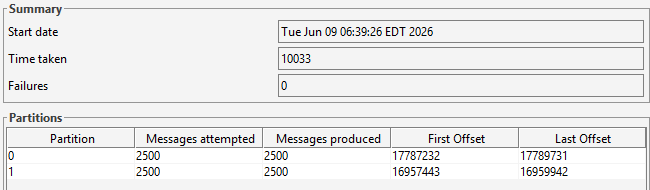
If generation is canceled after some messages have been produced, Offset Explorer opens the Results page with the partial results that are available.